Windows 本地 LaTex 写作环境配置
在线 LaTex 可以使用 Overleaf,但因为一些原因(比如使用 Codex 解决报错与 Git 管理)还是想本地部署一套写作环境。
安装 TeX Live
点击链接下载官方网络安装器:https://mirror.ctan.org/systems/texlive/tlnet/install-tl-windows.exe
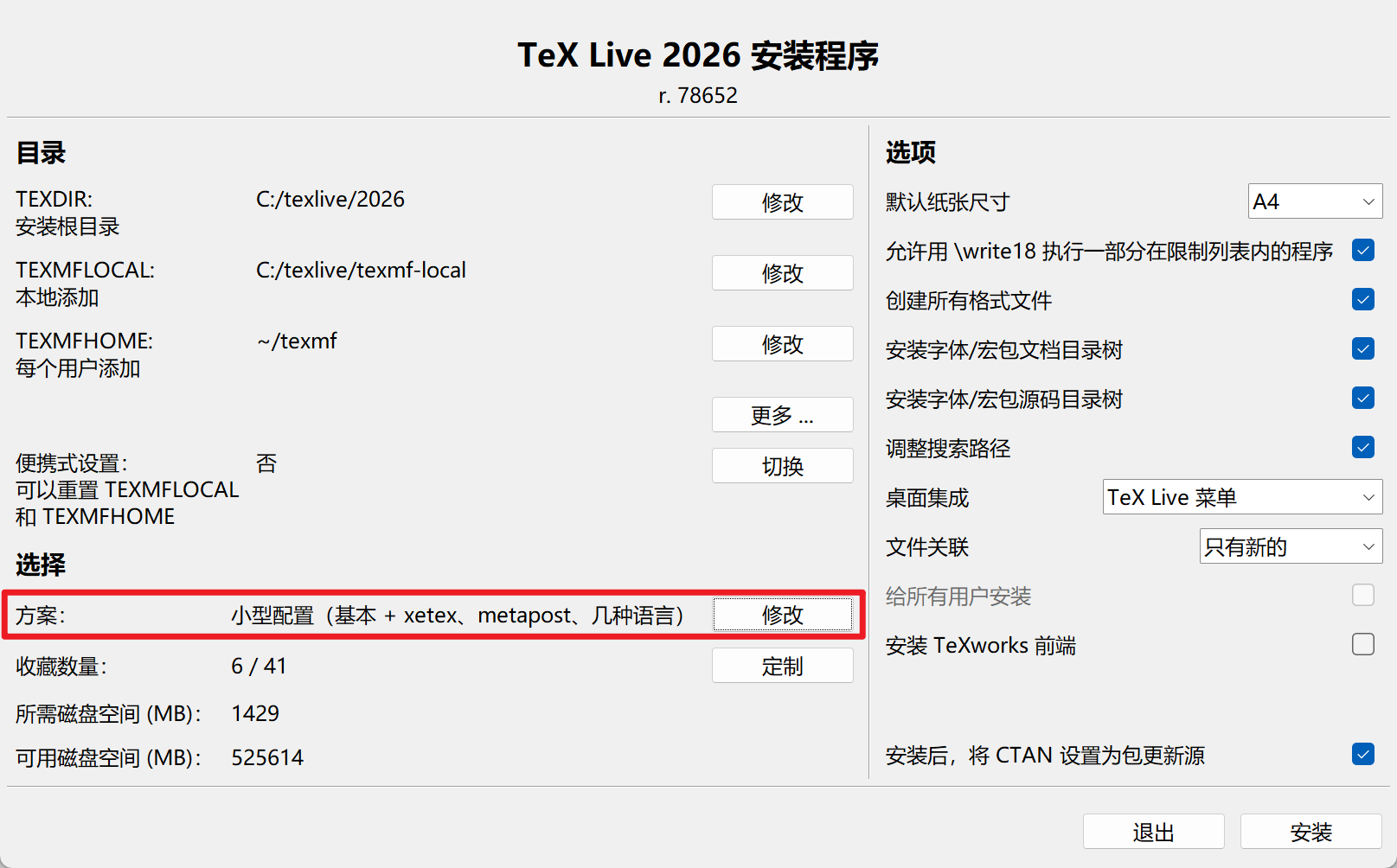
下载后打开一路点击安装即可,之后会自动运行 Tex Live 安装程序,点击“高级”。
这里把方案修改为小型配置,然后点击安装,等待安装结束。这样的好处是可以减少初次安装时间,后续根据实际需要使用 tlmgr install 去添加包即可。
如果想更轻量化安装,可以点击定制进行进一步修改。
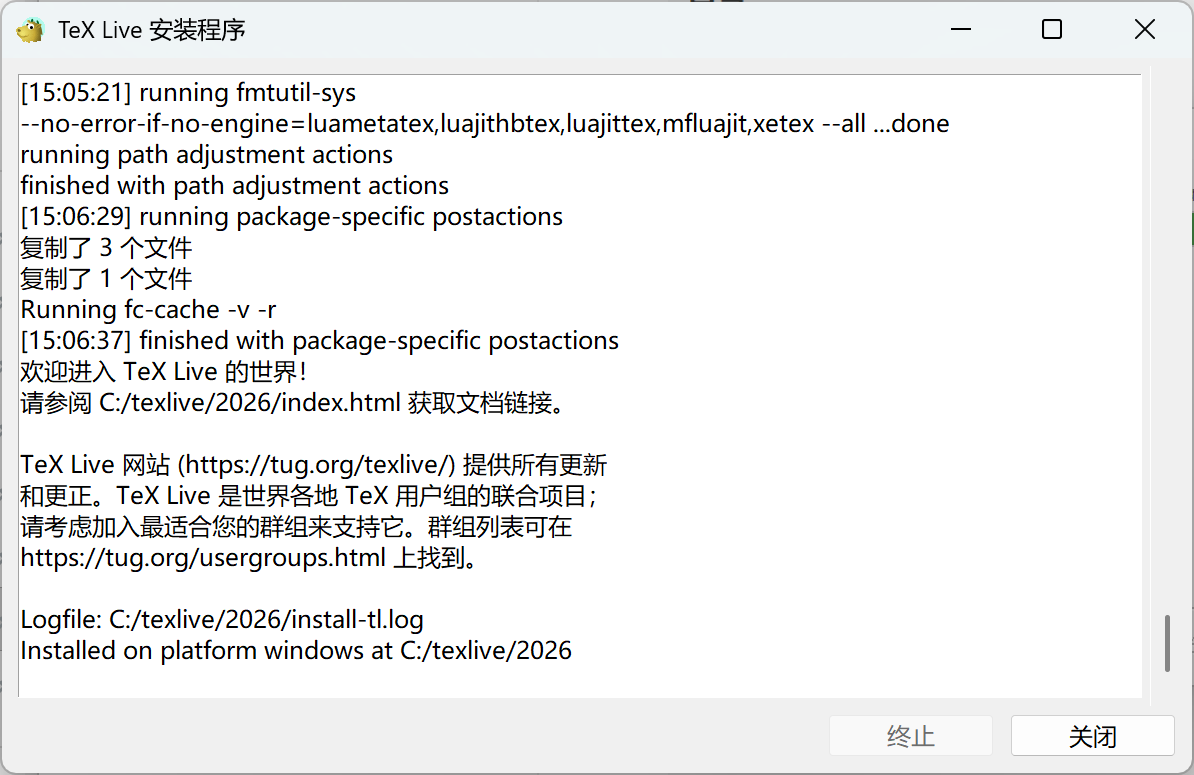
安装完成截图如下
在终端中验证一下安装
PS C:\Users\jklin> xelatex --version
XeTeX 3.141592653-2.6-0.999998 (TeX Live 2026)
kpathsea version 6.4.2
Copyright 2026 SIL International, Jonathan Kew and Khaled Hosny.
There is NO warranty.  Redistribution of this software is
covered by the terms of both the XeTeX copyright and
the Lesser GNU General Public License.
For more information about these matters, see the file
named COPYING and the XeTeX source.
Primary author of XeTeX: Jonathan Kew.
Compiled with ICU version 78.2; using 78.2
Compiled with zlib version 1.3.2; using 1.3.2
Compiled with FreeType2 version 2.14.1; using 2.14.1
Compiled with Graphite2 version 1.3.14; using 1.3.14
Compiled with HarfBuzz version 12.3.2; using 12.3.2
Compiled with libpng version 1.6.55; using 1.6.55
Compiled with pplib version v2.2
Compiled with fontconfig version 2.15.0; using 2.15.0
PS C:\Users\jklin> tlmgr --version
tlmgr revision 78301 (2026-03-07 18:41:28 +0100)
tlmgr using installation: C:/texlive/2026
TeX Live (https://tug.org/texlive) version 2026
配置 VSCode 扩展
VSCode 是目前主流的编辑器之一,可以在这里下载: https://code.visualstudio.com/download。
在应用商店中搜索 LaTeX Workshop,安装扩展。
测试
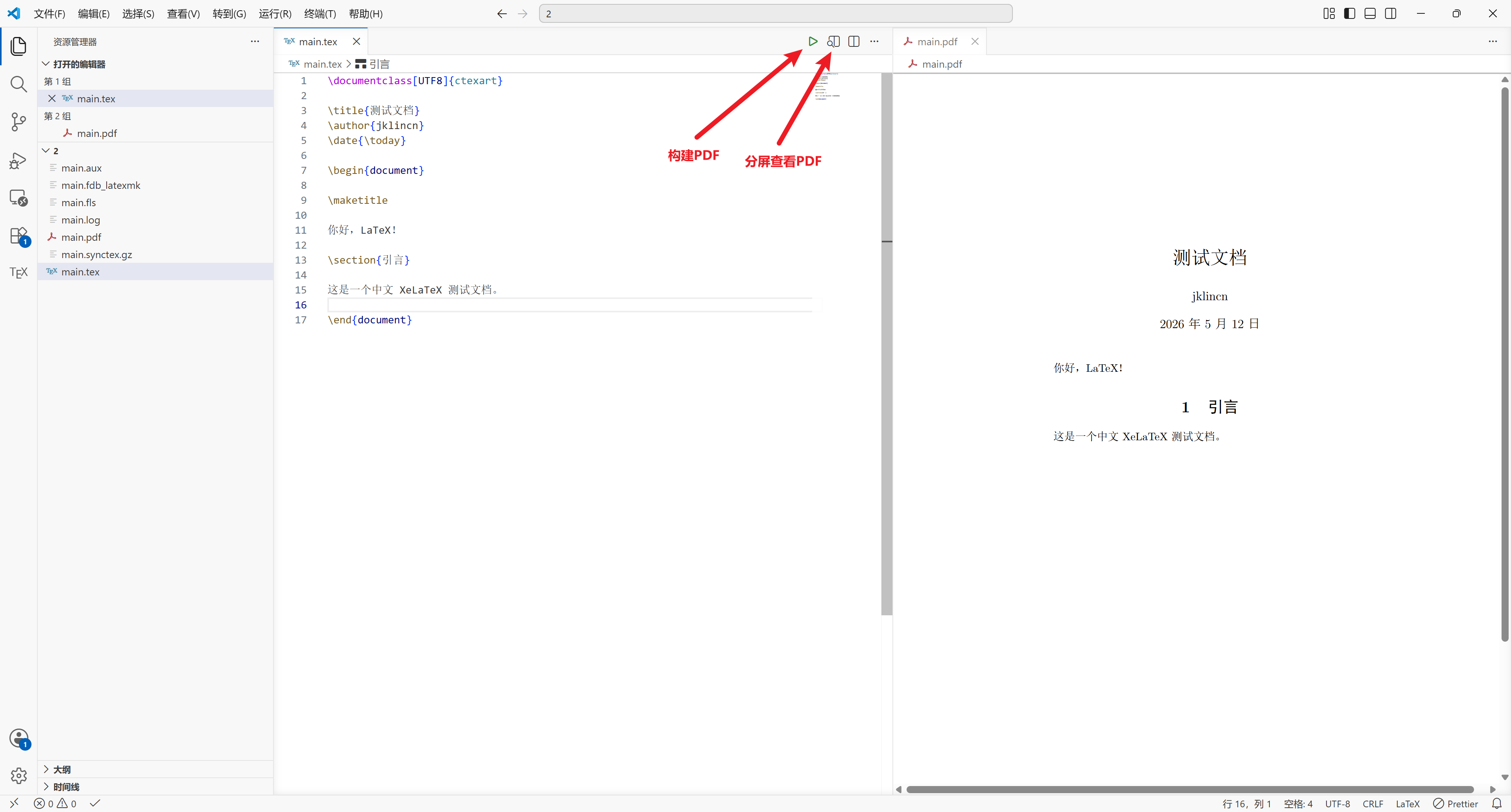
安装完成后可以新建一个测试文件 main.tex,输入以下内容
|
|
然后点击右上角的绿色按钮或者保存一下文件,即可编译项目。
本站不记录浏览量,但如果您觉得本内容有帮助,请点个小红心,让我知道您的喜欢。